
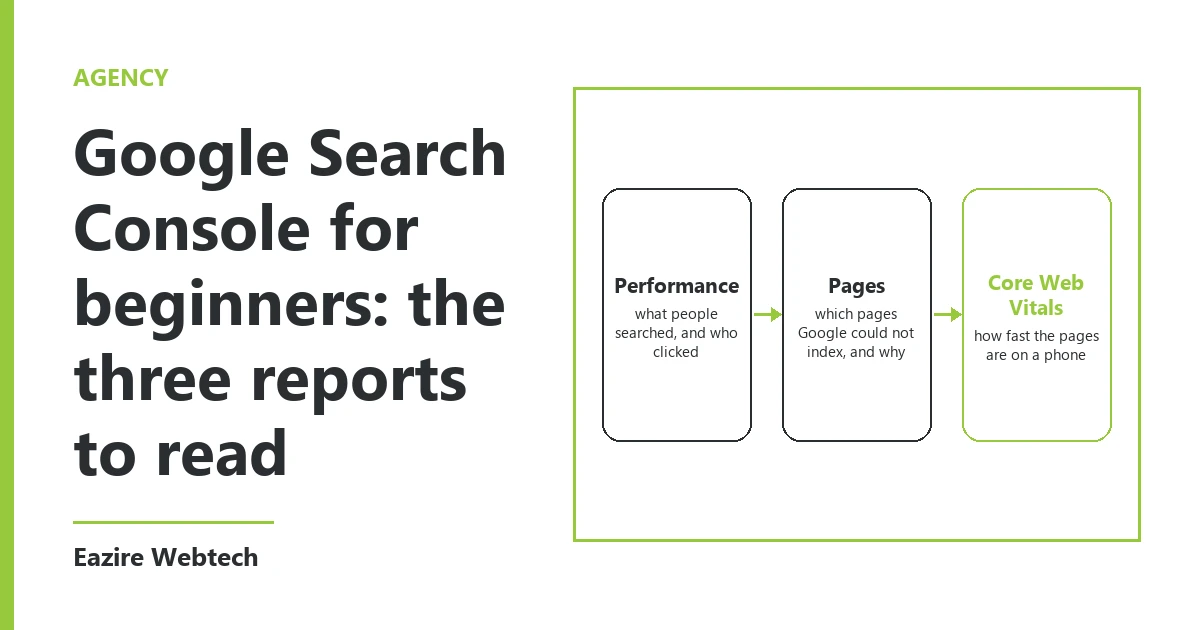
Google Search Console for beginners: start with three reports
Search Console is Google's free report on your website. It shows what people searched before they found you. It shows which of your pages Google keeps. It shows how fast your pages feel on a real phone.
When we hand over a website, we add it to Search Console and give the owner access. Most owners open it once and close it again. The left menu is long, and most of it can wait. If you want Google Search Console for beginners in one line, it is this: three reports do the work. They are Performance, Pages and Core Web Vitals. Read them once a month, in that order. Each one asks you for one action.
Performance: what people typed before they found you
Open Performance, then Search results. Set the date range to the last three months. Four boxes sit above the chart: total clicks, total impressions, average CTR and average position. Turn on all four.
An impression means your page showed up in a result someone saw. A click means they came in. CTR is clicks divided by impressions. Average position is where you sat in the results, with 1 at the top.
Below the chart, the Queries tab lists the searches. This is the part owners skip, and it is the most useful part. It tells you, in your customers' own words, what they wanted when they found you. The Pages tab beside it shows which of your pages earned those visits.
The one action: find a query with many impressions and very few clicks. Google is showing you, but people are not choosing you. Open the page that query points to. Rewrite its title and description so they answer that exact search in plain words. Write down the date. Check the same query four weeks later.
The report keeps 16 months of data and runs two or three days behind. A change you make today will not show this week.
Pages: which of your pages Google keeps
Open Indexing, then Pages. The chart splits your site in two: indexed and not indexed. Only an indexed page can appear in search at all.
A page that is not indexed is not always a problem. A thank-you page, a cart, or an old address that now redirects should stay out. Below the chart, Google gives a reason for each group. Read the reasons, not the total.
Three reasons need a person. "Not found (404)" means a link somewhere points at a page that is gone. "Excluded by noindex tag" means the page carries an instruction to stay out of search. On a live service page, that is usually a setting left on from the build. "Crawled, currently not indexed" means Google read the page and chose not to keep it. Most often the page is thin, or it repeats another page.
The one action: open the not indexed list and look for any page you want a customer to land on. Your home page, a service page, a product page. If one is there, open URL Inspection for it and send the reason to whoever built the site. Once it is fixed, press Request indexing on that page. Do it one page at a time, because the button has a daily limit.
Core Web Vitals: how the page feels on a real phone
Open Core Web Vitals. It has two charts, mobile and desktop. Read mobile first, because Google judges your site mainly by its mobile version.
The report puts your pages in three groups: Good, Needs improvement and Poor. It uses three measures. Largest Contentful Paint is how long the main picture or heading takes to appear. Good is 2.5 seconds or less. Interaction to Next Paint is how quickly the page answers a tap. Good is 200 milliseconds or less. Cumulative Layout Shift is how much the page jumps while it loads. Good is 0.1 or less.
This report uses real visits to your site, so it can differ from a speed test you run yourself. A small site often sees "Not enough usage data" here. That is normal when visitors are few. It is not a fault.
The one action: if mobile shows a Poor group, open it and see which measure failed. When it is Largest Contentful Paint, the cause we find most is one large photo at the top of the page, uploaded straight from a camera. Ask for it to be resized and served as WebP. When it is layout shift, the cause is usually an image or banner with no fixed size. After the fix, press Validate fix. Google watches those pages for 28 days before it marks them passed.
A monthly habit of about fifteen minutes
Pick one date each month. Open the three reports in order. Write down three things in a notebook or a sheet: total clicks for the last 28 days, the count of indexed pages, and the mobile status in Core Web Vitals. Three lines a month is enough to see a trend across a year.
If one of the three moves the wrong way, you know which report to open and what to ask. Do not chase every warning. Search Console also emails the site owner when something new breaks. Keep the email on the account one that you actually read.
What we do with it when we run a site
When we host a site, we add it to Search Console on the day it goes live. We submit its sitemap. We read the same three reports. A new page that has not appeared in Pages after two weeks goes to URL Inspection. A photo that slows the first screen gets resized before it costs anyone a click.
The one question we would ask you is this: who has owner access to your Search Console today, and can you log in yourself? If only the people who built the site can, ask them to add you as an owner. If you are not sure your site is in Search Console at all, send us your web address and we will tell you.
To have us host your website and read these three reports for you each month, see our website and hosting services.